AIMap 2002 v1.0b Просмотр ZIP-архива
AIMAPdoc.TXT
	               AIMap 2002 V1.0b TDR
               (for Microsoft Flight Simulator 2002
     Copyright © 2001 by Rodolfo Arata.  All rights reserved.


AIMap can be used to see in a radar display, all the generated AI dynamic
traffic. Optionally can "jump to" or perform an "automatic following" of
the selected aircraft. There are also other options available, like
autoTunning COM frequency, change your position by clicking on the map,
identify all the aircrafts on the active com frequency, identify the aircrafts
that are currently receiving/sending a radio communication over the active
frequency.

INSTALLATION
Copy aimap.gau into the GAUGES directory where flight simulator is located.
Just add it in a panel you desire (737, Cessna), by editing the related
PANEL.CFG and adding a new Window as follow:

[Window Titles]
window00=Main Panel
window01=Radio Stack
Window02=GPS
window03=Throttle Quadrant
window04=Overhead Panel
window05=AIMap                        -< new line added

and after last window,  in this case  [Window04]:

[Window05]
size_mm=280,350
position=4
BACKGROUND_COLOR=255,255,16
VISIBLE=1
ident=AIMap

gauge00=aimap!ai_map, 0, 0,280,350

Pay attention to assign the correct  number to the window you just added.


The Map Area
On the radar screen there are two concentric rings displayed representing
respectively the middle and the full map's range. Your position is always in
the center. The AI Aircraft are displayed with primary information like TAIL
number, flight level /or Feet, ground speed and a small line representing
the aircraft's heading direction.

Displaying color may change as follows:

White:         	Active aircraft (flying or on the ground)
Dark White  	Non active aircraft (generally parked on the ground waiting to start-up)
Green          	Selected Aircraft
Yellow        	When Atc or Pilot are speaking on the currently active freq.
Magenta      	All the aircrafts on the active frequency

Aircraft Selection
Click with the mouse over an aircraft to select it. Clicking the blank area
around an aircraft, will revert the selection to none. After selecting an
aircraft, you will get further information about it in the appropriate
space below the radar display, and the related options (jump, follow, Comfreq... )
will be activated.

Take notice that:
- Not all aircrafts have a flight number, in this case atc will call the ac by
  tail id or sometimes mixing tail id and model (eg:Tail=N10456 Ac model=Cesna,
                                                    ATC will call "Cesna 456")!
- Speed is intended as IAS (Indicated air speed),instead of the map area, where
  is intended as GS (Ground Speed).
- Sometimes, when in Jump or Follow mode, the aircraft may "stutter".
  This happens because that aircraft is actually stuttering,  not because of a
  malfunctioning of AIMap 2002.
- The airports, at the moment, can be easly identified on the radar map, because
  usually there are many dark white (non active) aircrafts parked in the area.
- Crash detection and G-effect must be disabled in the Aircraft->Realism menu!


Buttons and Options

In addition to just displaying the radar map, that is the primary function
of AIMap 2002, several functions are provided to interact with the AI aircrafts
on the map, if desired.

Map Range
Changes the max range of the map, up to 0.1 NM, very low ranges are useful to
view or to select aircrafts where many are displayed like,for example, in a big
airport.

Ppos,  means Pick Position and when selected, the map's color changes to dark
grey. Now you can change your aircraft's position by clicking everywhere on the
map. By changing position, the scenery will be loaded gradually, so initially
you may not have a nice ouside view, especially if on the ground !
This effect is more noticeable if running on slower CPUs or/and on low memory.

Jump & Follow
Respectively  "Fly" the selected aircraft putting  you in the "cockpit" (please
note:the panel of that aircraft will NOT be displayed, but you will continue to
see the cockpit of your currently loaded aircraft), or "Follow" the selected
aircraft from the external, putting you behind.

To return to your initial position, press BACK (which is displayed instead of
JUMP or FOLLOW when one of these option are activated).
You can cycle trough and you can change the selected aircraft without going
back any time to the original position. When Jump or Follow modes are activated,
button PPOS will change to HERE meaning that by pushing it you will be
immediately "dropped" wherever  you are and previous saved position will be
deleted.

-Take care about external views in main window that at time will works just if
 you are using an empty panel, otherwhise your aircarft may be dropped down.
 If you use a secondary view window it will works fine.
-Depending of your current using panel when following another aircraft the
 outside view may require a manually pitch correction using standard FS keys
 Shift Bksp / Shift-enter.

These functions can be used in normal or slew mode but in when in slew you will
not hear the atc transmissions.

When Auto Tune is activated,  every time you select an aircraft, or every
time the selected aircraft changes the frequency, your com frequency is
automatically updated to.

Ac on Freq displays on magenta color all the aircrafts on your current
frequency.

No much to say about other options since they are very auto explicative!!


DISCLAIMER
This gauge may freely distribute for non-commercial purposes only.
This gauge can' t be included in any package without permission of the author.
This product is provided "as is" and has no warranty, the user is responsible
for any loss or damage due to the its use.


AIMap 2002 V1.0b - Copyright © 2001 by Rodolfo Arata. All rights reserved.

E-mail: [email protected]
aimap.zip
| Имя файла | Дата | Размер |
|---|---|---|
| AIMAPdoc.TXT | 07.12.2001 02:54 | 6 KB |
| aimapdoc.doc | 07.12.2001 02:02 | 35 KB |
| aimap2002.jpg | 07.12.2001 00:29 | 62 KB |
| AIMAP.GAU | 06.12.2001 04:00 | 456 KB |
| aimap.gif | 06.12.2001 03:10 | 9 KB |
| avsim_ru.diz | 14.03.2004 00:14 | 499 B |
| Итого: | 568 KB | |
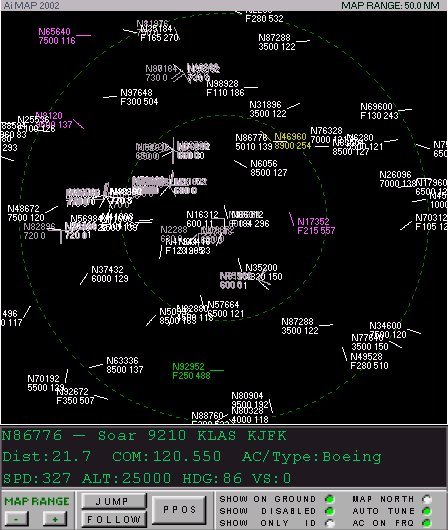
AIMap can be used as a radar to monitor the AI traffic. You can also pritsipitsya to any AI aircraft in the following, I and many other navorotov.
→ Size:
120 KB
→ Date:
23 years ago (11.02.2003 13:21)
→ Author:
Rodolfo Arata
→ License:
License file included in archive
→ Downloaded:
932 time(s)